
What Is an Urdu Phonetic Keyboard?
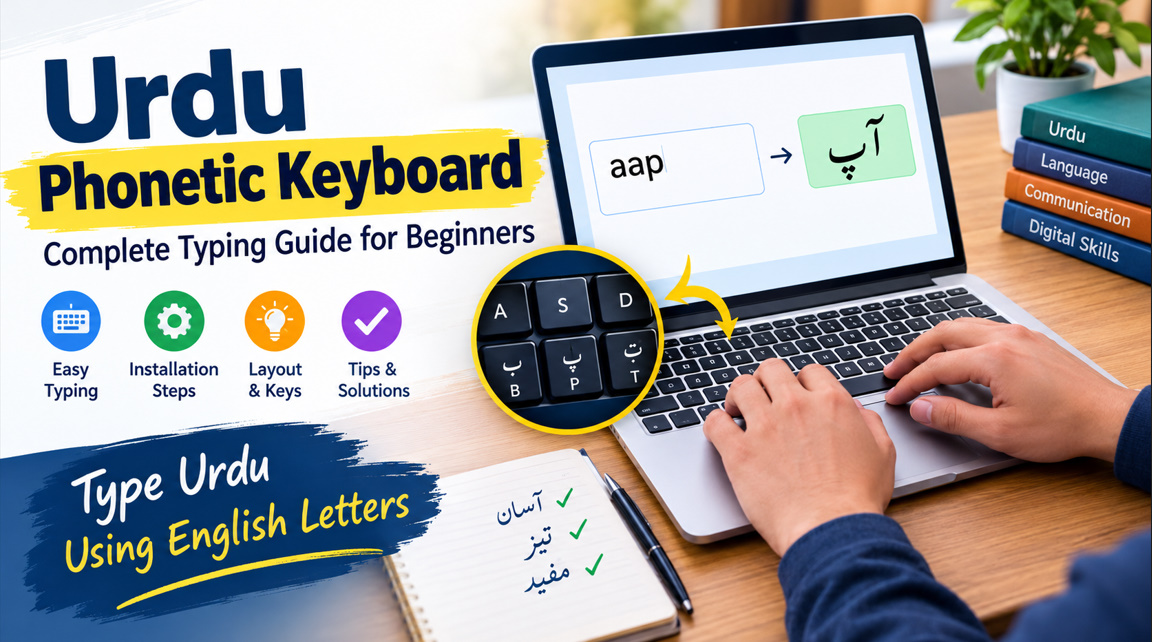
An Urdu phonetic keyboard is a typing tool that allows users to write Urdu using familiar English keyboard keys. Instead of memorizing a traditional Urdu keyboard layout, users type letters according to their sounds. For example, typing “salam” may produce “سلام,” depending on the keyboard software and its settings.
This keyboard is useful for beginners, students, teachers, writers, and anyone who communicates in Urdu online. It makes Urdu typing more accessible by connecting Roman Urdu spelling with Urdu script. Many phonetic keyboard layouts are available for computers, while compatible tools and keyboards also support Urdu typing on mobile devices.
- Easy Urdu typing for beginners
- English-to-Urdu phonetic mapping
- Familiar QWERTY keyboard layout
- Faster Urdu text entry
- Useful for students and professionals
- Support for Urdu script
- Convenient online communication
- Reduced need to memorize keys
How Does an Urdu Phonetic Keyboard Work?
An Urdu phonetic keyboard converts the sounds represented by Roman letters into Urdu characters. When users type a familiar sound, the software maps the input to a corresponding Urdu letter or word. The exact result depends on the selected keyboard layout, language settings, and whether the tool uses direct character mapping or predictive text.
For instance, typing “mera naam Ali hai” may help produce “میرا نام علی ہے” in a phonetic typing tool. Some keyboards convert letters immediately, while others display suggestions that users can select. Learning common sound combinations makes Urdu typing easier and helps users write messages, documents, assignments, and articles more efficiently.
- Type using English letters
- Convert sounds into Urdu script
- Use familiar keyboard keys
- Select suggested Urdu words
- Check spelling before publishing
- Learn common letter combinations
- Practice frequently used phrases
- Choose a suitable phonetic layout
Main Features of an Urdu Phonetic Keyboard
A good Urdu phonetic keyboard offers simple controls, reliable character mapping, and convenient Urdu text input. Many tools support common Urdu letters, punctuation, spaces, and frequently used combinations. Depending on the software, additional features may include word suggestions, automatic conversion, customizable shortcuts, and compatibility with popular writing applications.
Some Urdu typing tools also support mixed-language writing, allowing users to switch between English and Urdu when needed. This is especially useful for bilingual communication, educational content, and professional documents. Before selecting a keyboard, check its compatibility with your operating system, the accuracy of its Urdu conversion, and the availability of the characters you regularly use.
- Simple typing interface
- Familiar English keyboard keys
- Urdu character conversion
- Common punctuation support
- Optional word suggestions
- Compatibility with writing apps
- Convenient language switching
- Customizable settings in some tools
How to Install an Urdu Phonetic Keyboard on Windows
Windows users can add Urdu language support through the operating system’s language settings. Open Settings, find the language or time-and-language section, and add Urdu if it is available in your Windows version. Then review the installed keyboard options and select a phonetic layout when one is provided or supported by your chosen typing tool.
If the built-in Urdu keyboard does not match your preferred phonetic arrangement, you may need a compatible Urdu phonetic keyboard utility. Follow the software provider’s installation instructions and verify that the program works with your version of Windows. After setup, test common Urdu words in a text editor before using the keyboard for important documents.
- Open Windows Settings
- Find language preferences
- Add Urdu language support
- Review available keyboard layouts
- Choose a phonetic layout if available
- Install compatible software when needed
- Test typing in a text editor
- Confirm the language switching shortcut
Using an Urdu Phonetic Keyboard on Mobile Devices
Typing Urdu on smartphones is convenient for messaging, social media, notes, and everyday communication. Many mobile devices allow users to add Urdu through their keyboard settings or a compatible multilingual keyboard application. Once Urdu input is enabled, users can switch between languages without changing their device’s primary display language.
The available typing methods vary between Android and iOS devices. Some keyboards offer phonetic input, while others provide a conventional Urdu layout, predictive suggestions, or transliteration features. Users who prefer typing Roman Urdu should check whether their selected keyboard converts Roman letters into Urdu script. Testing the settings first helps ensure a smooth typing experience.
- Open your phone’s keyboard settings
- Add Urdu as an input language
- Check for phonetic typing support
- Enable language switching
- Try typing common Urdu phrases
- Review suggested words carefully
- Update the keyboard when necessary
- Choose settings that suit your needs
Urdu Phonetic Keyboard vs. Traditional Urdu Keyboard
The main difference between a phonetic Urdu keyboard and a traditional Urdu keyboard is how users locate characters. A phonetic layout associates Urdu letters with familiar English sounds, making it easier for people who already know the QWERTY keyboard. A traditional layout places Urdu characters according to its own key arrangement, which users may need to learn separately.
Both methods can produce Urdu text, and the better option depends on personal preference and typing requirements. Phonetic input is often convenient for beginners and occasional writers, whereas a traditional layout may suit people who already know its key positions. Users should also consider accuracy, typing speed, software compatibility, and the type of Urdu content they create.
- Phonetic layouts follow sound associations
- Traditional layouts use Urdu key positions
- Phonetic typing is beginner-friendly
- Traditional typing rewards layout familiarity
- Both methods support Urdu writing
- Available features vary by software
- Practice improves accuracy with either method
- Personal preference determines the best choice
Common Urdu Phonetic Keyboard Problems and Solutions
Sometimes an Urdu phonetic keyboard produces an unexpected letter or word. This may happen because different layouts assign different sounds to keys, certain Urdu sounds have multiple spellings, or the software uses predictive conversion. Checking the selected layout and reviewing the input method’s settings can resolve many common typing problems.
Another issue occurs when Urdu text appears disconnected, reversed incorrectly, or displayed with unusual characters in an application. This may be related to font support, text direction, or software compatibility. Make sure the application supports right-to-left Urdu text and use a suitable Unicode-compatible font. Testing the text in another modern editor can help identify whether the problem comes from the keyboard or the application.
- Verify the selected keyboard layout
- Check language input settings
- Review suggested word conversions
- Use Unicode-compatible Urdu text
- Check right-to-left text direction
- Update outdated keyboard software
- Test another writing application
- Proofread Urdu spelling and punctuation
Tips for Improving Urdu Phonetic Typing Speed and Accuracy
Improving Urdu phonetic typing begins with regular practice and familiarity with common Urdu sounds. Start by typing short words, greetings, and everyday sentences before moving to longer paragraphs. Learn how your chosen layout handles letters with similar sounds, including aspirated consonants and characters that may have different Roman representations across typing tools.
For better results, practice writing complete sentences instead of focusing only on individual letters. Review your Urdu spelling, punctuation, and sentence structure after typing. If your keyboard offers word suggestions, use them carefully rather than accepting every automatic conversion. Consistent practice helps you develop confidence and create clearer Urdu text for schoolwork, professional writing, and online communication.
- Practice for a few minutes daily
- Start with common Urdu words
- Learn your layout’s sound mappings
- Type complete sentences regularly
- Review spelling and punctuation
- Use word suggestions thoughtfully
- Practice in your preferred writing app
- Build accuracy before increasing speed